Tab5 factory firmware workbench
Compile M5Stack's Tab5 factory interface with ESP-IDF 5.4.2, check the fitted screen controller, then use the touch interface as a baseline for your own terminal.
View original project ↗What you’re building
M5Stack publishes the Tab5 factory interface as an ESP-IDF project, making it a practical starting point for a custom touch terminal rather than a promise that an unrelated ESP32 sketch will work unchanged. The official build guide specifies ESP-IDF v5.4.2, the repository's fetch_repos.py dependency step and the platforms/tab5 hardware target. Its README also offers a desktop SDL build, but a desktop preview is not proof that the actual display, touch controller or wireless companion works. Screen compatibility is the first decision: Tab5 began with ILI9881C plus GT911, moved to ST7123 in October 2025, and changed to ST7121 in April 2026. Identify the driver from the rear sticker and compare it with the selected source before flashing. The pinned repository contains an ST7121 driver as well as the Tab5 board component; this is source-level support, not a Flashable bench test of every production revision. Start with the factory interface, check touch response across the panel, and record the working source revision before changing a single screen. Keep a manufacturer recovery route available and avoid using an old community display-only demo as evidence that camera, audio or networking will also work.
Key steps
- Read the Tab5 hardware documentation and record the rear sticker's screen driver: ILI9881C/GT911, ST7123 or ST7121. Save your existing application and the manufacturer's factory-restore instructions before replacing firmware.
- Install and activate ESP-IDF v5.4.2 using Espressif's platform-specific instructions. Source export.sh from its actual absolute location; do not assume a relative path copied from another directory layout is correct.
- Clone the repository from the Source code link and check out the exact revision shown in that URL. Run python ./fetch_repos.py at the repository root. Record the fetched dependency revisions as well: pinning the parent repository alone does not freeze every fetched dependency.
- Enter platforms/tab5 with the ESP-IDF environment active and run idf.py build. Use the hardware target, not the separate desktop SDL target, for a firmware image intended for the device.
- Connect USB-C with a data cable. Hold Reset until the green LED flashes rapidly, then release it to enter download mode. Run idf.py flash and wait for completion; use the official restore guide if flashing or the initial display test fails.
- Tap different screen areas to check the factory interface. Confirm the actual screen revision works before customizing one screen, then keep the source commit, dependency revisions and toolchain version with your project notes. Treat camera, audio and wireless checks as separate tests, not results implied by a visible interface.
Original project and code
Hardware for this project
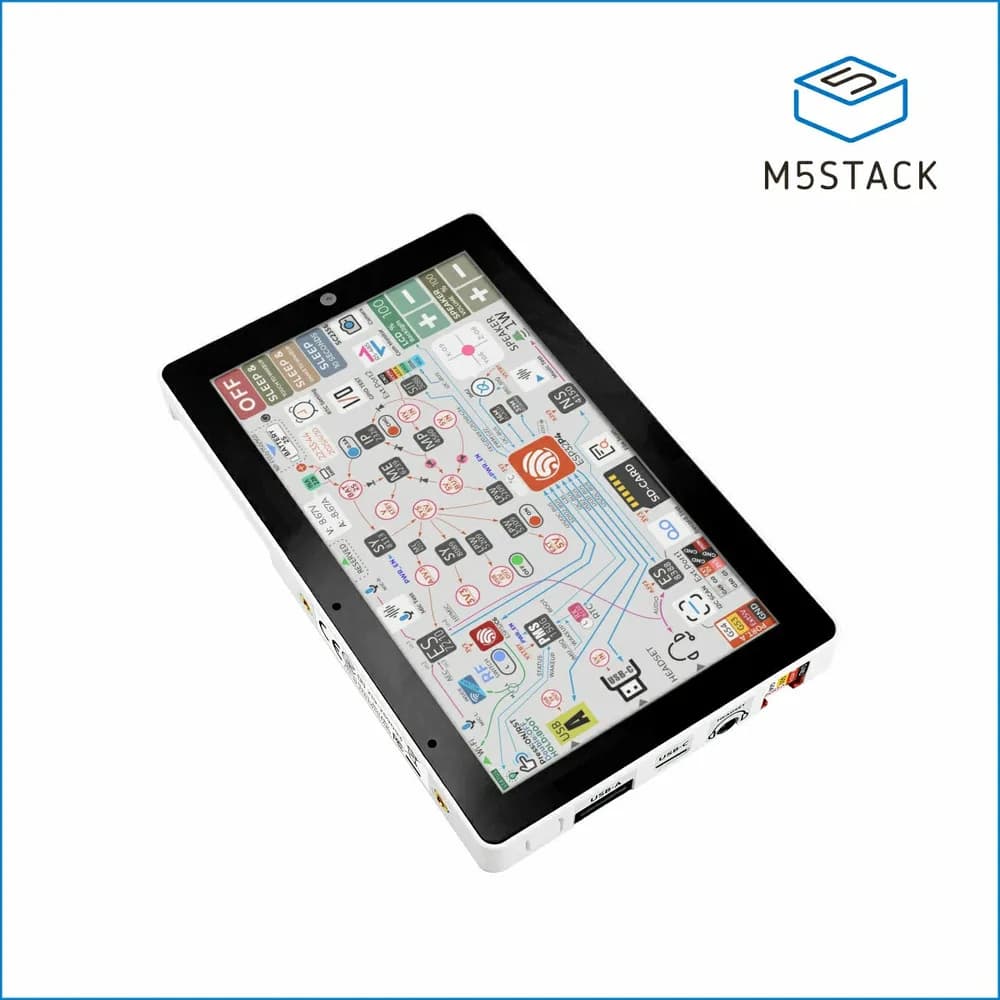
Tab5
5-inch 1280×720 ESP32-P4 touch terminal with ESP32-C6 Wi-Fi 6, a 2 MP camera, audio, USB host, RS485 and M5-Bus expansion; battery depends on the C145 or K145 package.
- Platform
- ESP32-P4 RISC-V with 16 MB flash and 32 MB PSRAM; ESP32-C6 wireless companion; ESP-IDF/Arduino/UiFlow2 · Arduino
- Builds
- 02