Fruit Jam OS CircuitPython launcher
Install Adafruit’s CircuitPython launcher, editor, built-in apps and games on the exact Fruit Jam board.
View original project ↗What you’re building
Fruit Jam OS turns the exact Adafruit Fruit Jam into a keyboard-and-display microcomputer running on CircuitPython. Adafruit’s launcher provides an app browser, a code-file editor, boot animation, and bundled apps and games, producing a self-contained experience inspired by early home computers. The supported path first installs CircuitPython 10.x or newer for the Fruit Jam, then copies a language-specific release onto CIRCUITPY. A compatible DVI display and a USB keyboard or mouse must already be connected before startup so the launcher can be controlled. Back up any existing code.py and merge rather than overwrite a customized settings.toml. The installation copies many files and can take several minutes; a flash-reset UF2 is destructive and belongs only in recovery, because it erases every file on the board.
Key steps
- Back up code.py and settings.toml, download the current Fruit Jam-specific CircuitPython 10.x-or-newer UF2, and confirm the USB cable carries data.
- Hold BOOTSEL while resetting or connecting USB, wait for the RP2350 drive, copy the CircuitPython UF2 to it, and verify that CIRCUITPY replaces the boot drive.
- Download the required language archive from the Fruit Jam OS releases, unzip it, and merge any settings you need to keep rather than blindly replacing settings.toml.
- Copy apps, boot_animation, fonts, launcher_assets, lib, and the documented Python and settings files to CIRCUITPY; allow several minutes for the transfer to finish.
- Connect the compatible display and USB keyboard or mouse before power-up, reset the Fruit Jam, and verify the boot animation, launcher navigation, editor, and one bundled app.
Original project and code
Original project pages, manufacturer documentation and repositories used while preparing this page. Last reviewed .
Hardware for this project
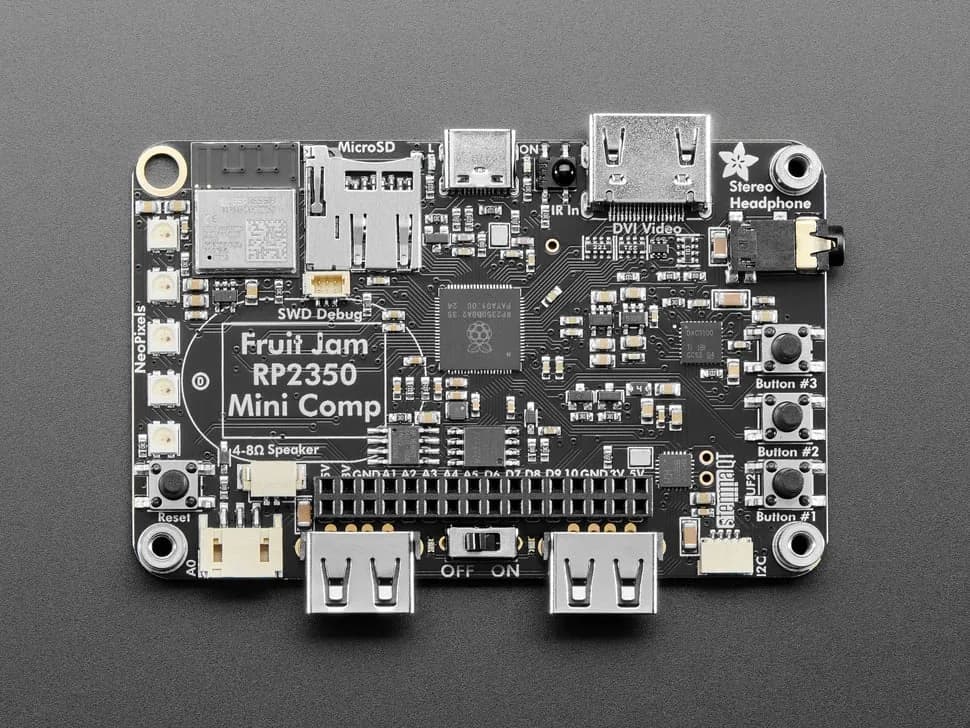
Fruit Jam
Credit-card-sized RP2350B computer board with DVI output, USB host, microSD, audio, Wi-Fi coprocessor and GPIO expansion.
- Platform
- Raspberry Pi RP2350B with ESP32-C6 connectivity coprocessor, CircuitPython/Arduino/Pico SDK · Circuitpython
- Builds
- 09