CPZ Machine text-adventure interpreter
Run version 3 Z-machine text adventures on Fruit Jam with CircuitPython, DVI video, USB keyboard input and named saves.
View original project ↗What you’re building
Dan Cogliano’s CPZ Machine is a CircuitPython Z-machine interpreter made for Adafruit Fruit Jam product 6200. It runs version 3 story files through the board’s HSTX DVI output and a USB keyboard, either as a standalone CircuitPython application or from Fruit Jam OS. Release 1.0.13 includes Zork I, Zork II and Zork III. CPZ Machine can also load other compatible .z3 stories placed in its stories folder, but each game can have separate copyright terms. The interpreter offers selectable monospace sizes and colour themes, starts a lone installed story automatically, and supports multiple named saves and restores in the CPSAVES partition. Keep expectations to version 3 games: the repository says some Z-machine opcodes and advanced features are not implemented, and sound effects and networking are not supported.
Key steps
- Choose standalone CircuitPython or Fruit Jam OS, and install CircuitPython 10.x for the exact Fruit Jam board if it is not already present.
- For standalone use, install the CircuitPython libraries listed by Adafruit’s guide. Fruit Jam OS already supplies the libraries required by CPZ Machine.
- Download the source archive for CPZ Machine release 1.0.13 and unzip it. Copy the extracted files and folders to the root of CIRCUITPY for standalone use, or to a new folder such as apps/CPZ for Fruit Jam OS.
- Connect a DVI-compatible display and USB keyboard, restart the Fruit Jam, then open CPZ Machine from Fruit Jam OS or let the standalone application start.
- Select one of the included Zork stories, verify keyboard input and DVI output, then test a named save and restore before adding other lawfully obtained version 3 .z3 files to the stories folder.
Original project and code
Hardware for this project
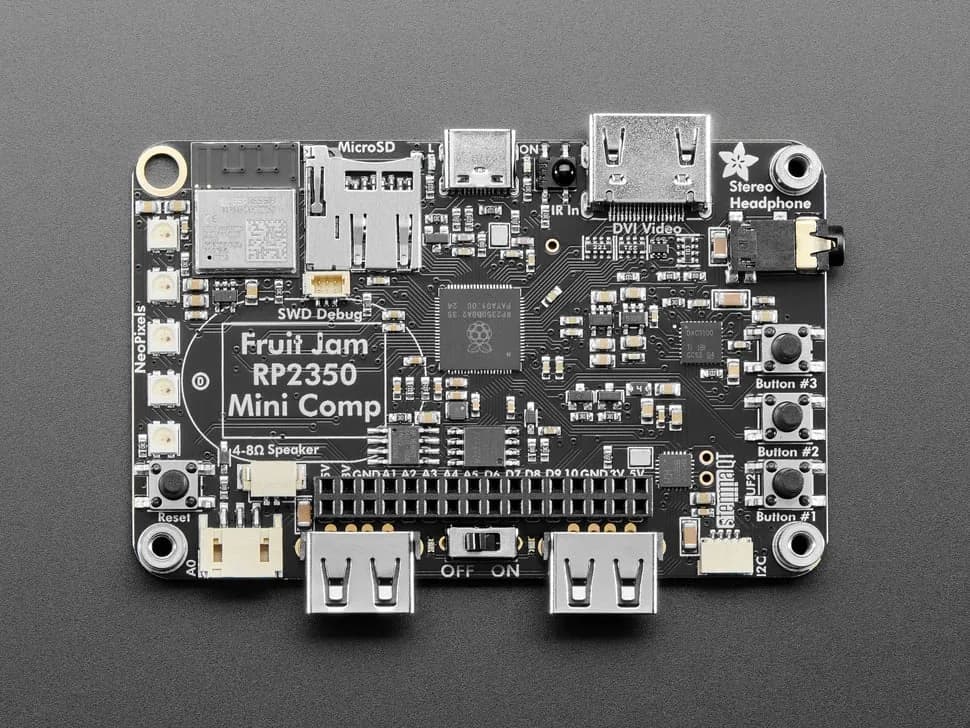
Fruit Jam
Credit-card-sized RP2350B computer board with DVI output, USB host, microSD, audio, Wi-Fi coprocessor and GPIO expansion.
- Platform
- Raspberry Pi RP2350B with ESP32-C6 connectivity coprocessor, CircuitPython/Arduino/Pico SDK · Circuitpython
- Builds
- 13