LilyClaw Telegram assistant on T-Display-S3
Build a screen-equipped Telegram assistant on the standard T-Display-S3, with local flash memory and cloud LLM calls; no robot wiring required.
View original project ↗What you’re building
LilyClaw by Silexperience210 runs a C agent loop on the ESP32-S3 and uses Telegram as its chat interface. This build targets the standard LILYGO T-Display-S3 with 16 MB flash, 8 MB octal PSRAM and its 1.9-inch 170×320 display, not the older T-Display, AMOLED models or an arbitrary ESP32 board. Enable the display option but leave the HC-SR04 and servo option disabled: the intended first setup is a USB-powered assistant with a screen, not the separately documented robot. USB-only operation without a battery is untested. Display-enabled mimi.c initializes battery monitoring; battery_monitor.c has no battery-presence check and can request battery_critical deep sleep when measured voltage is low and charging is not detected, with a five-second grace period in sleep_manager.c. If it sleeps unexpectedly, inspect serial battery/charging logs and report the power setup upstream; do not disable safety checks or bypass battery protection. Conversations and memory files live in SPIFFS on the board, but inference is not offline: prompts go over Wi-Fi to Anthropic or Moonshot AI, and messages also pass through Telegram. Budget for an API account and usage charges; local storage is not a promise that your data stays on the device. The source-build route below pins a reviewable revision instead of assuming that the live web installer matches it. At review, the README advertised v1.5.1 while the installer page still displayed v1.4.9. Set an explicit Telegram chat allowlist before first use; an empty allowed-chat-ID setting in the secrets header allows all chats. Keep keys, build artifacts and personal memory private, use a trusted network and do not expose the setup portal or WebSocket gateway to the internet. The display build also enters deep sleep after five minutes of inactivity by default, waking from its GPIO14 button: do not treat it as an unattended reminder service. Start with /status and a short non-sensitive prompt, then test a memory write and reboot before relying on persistence. No hardware reproduction or firmware compilation was performed for this listing.
Key steps
- Confirm the standard T-Display-S3 and save any existing firmware or files you need. Keep the official LILYGO factory firmware as a recovery option. This replaces the active firmware; do not assume local data survives a different partition layout.
- Clone the LilyClaw repository using its Code button, then check out the exact revision linked under Source code below. Copy that page's full commit ID rather than using the moving main branch. With the ESP-IDF v5.5+ environment active, run idf.py set-target esp32s3. Preserve the project's sdkconfig.defaults.esp32s3 settings for 16 MB flash, octal PSRAM and its custom partition table; do not copy an Arduino partition scheme.
- Copy main/mimi_secrets.h.example to main/mimi_secrets.h. Set the allowed-chat-ID entry in this header to your own verified numeric Telegram chat ID, or a deliberate comma-separated allowlist, before building. Empty means unrestricted. You may provide Wi-Fi, bot token and API key here, but never commit the secrets header or share a firmware binary containing your credentials.
- Run idf.py menuconfig, open MimiClaw Configuration, enable Enable T-Display S3 screen (v1.2+) and leave Enable HC-SR04 + Servos (v1.3) disabled. No ultrasonic sensor, servos or soldering is needed for this non-robot scope. USB power is the intended setup, but USB-only operation without a battery is untested; retain battery protection and investigate battery_monitor.c diagnostics if early sleep occurs.
- Run idf.py fullclean && idf.py build, then idf.py -p PORT flash monitor with your actual serial port. After any secrets-header change, clean and rebuild again. If flashing cannot connect, follow LILYGO's recovery sequence: hold BOOT, press and release RST, release BOOT, upload, then press RST to boot normally.
- If Wi-Fi is not configured, connect to the LilyClaw-Setup access point using the upstream default password lilyclaw1 and open http://192.168.4.1 locally. Enter your network, bot token and provider key privately, save and reboot. Runtime settings in NVS override compiled defaults. For Moonshot, the serial CLI provides set_provider kimi and set_api_key; do not paste real keys into shared logs.
- Check wifi_status from the serial CLI and send /status from the allowed Telegram chat before trying a short non-sensitive prompt. If replies fail, inspect connectivity, token, provider, model and API billing rather than reflashing repeatedly. Verify a different, non-allowlisted chat cannot invoke the bot before leaving it connected.
- Ask it to store a harmless test note as long-term memory in MEMORY.md, inspect it with the serial CLI memory_read command, reboot and run memory_read again to check persistence. memory_read checks MEMORY.md, not an arbitrary note file. Keep private backups of anything important. The default display configuration sleeps after five inactive minutes; press the GPIO14 button to wake it. Unexpected earlier sleep may be battery_critical: inspect serial battery/charging logs and report the power setup upstream without disabling safety checks or bypassing battery protection. Do not depend on timers or scheduled messages while it is asleep, and keep the setup portal and port 18789 gateway off public networks.
Original project and code
Hardware for this project
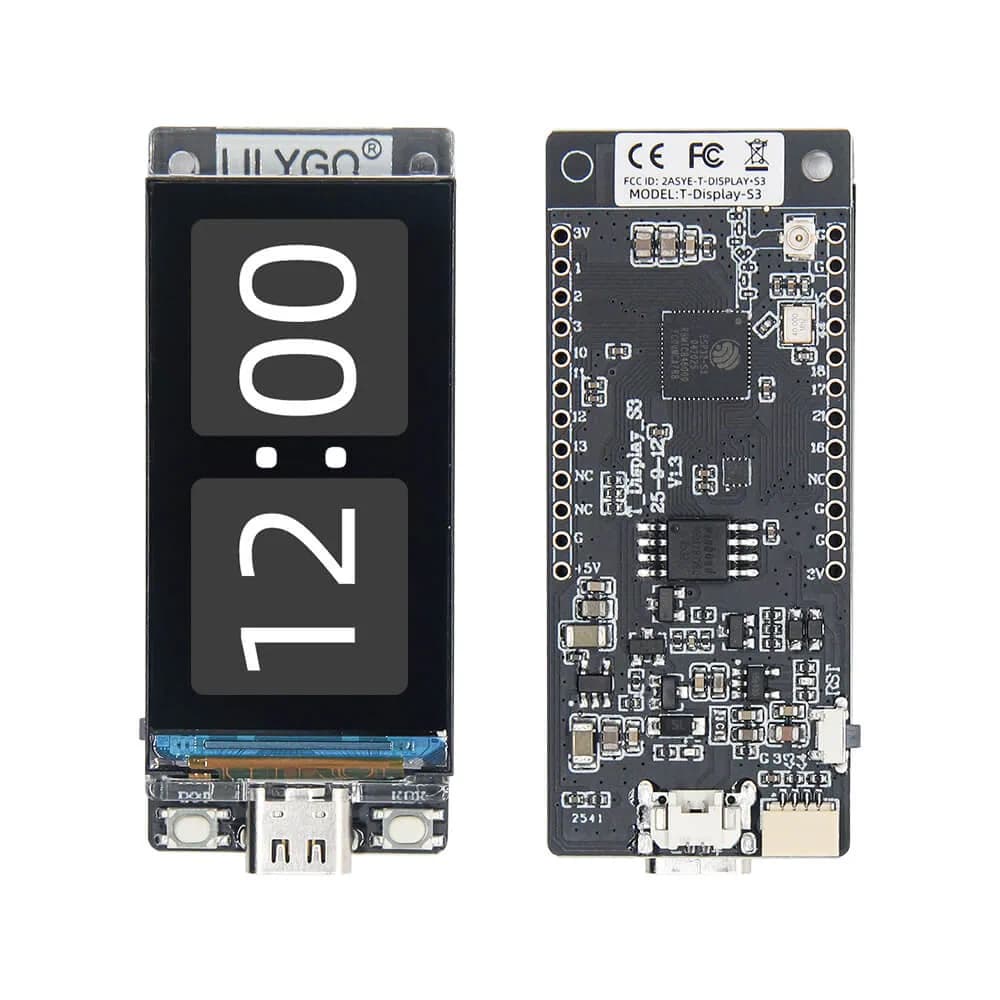
T-Display-S3
ESP32-S3 display board built around a 1.9-inch 170×320 color LCD, with buttons and battery support.
- Platform
- Espressif ESP32-S3, Arduino/ESP-IDF/MicroPython
- Builds
- 02